

The RLP+ K12 comes with an App:
-
Desktop App: Windows and Mac
-
Tablets: Android and iOS
To download the application, go to the official app stores on your device:
-
App Store for Mac OS
-
Windows Store for Windows OS
-
Play Store for Android OS
Do a search for the word Richmond:
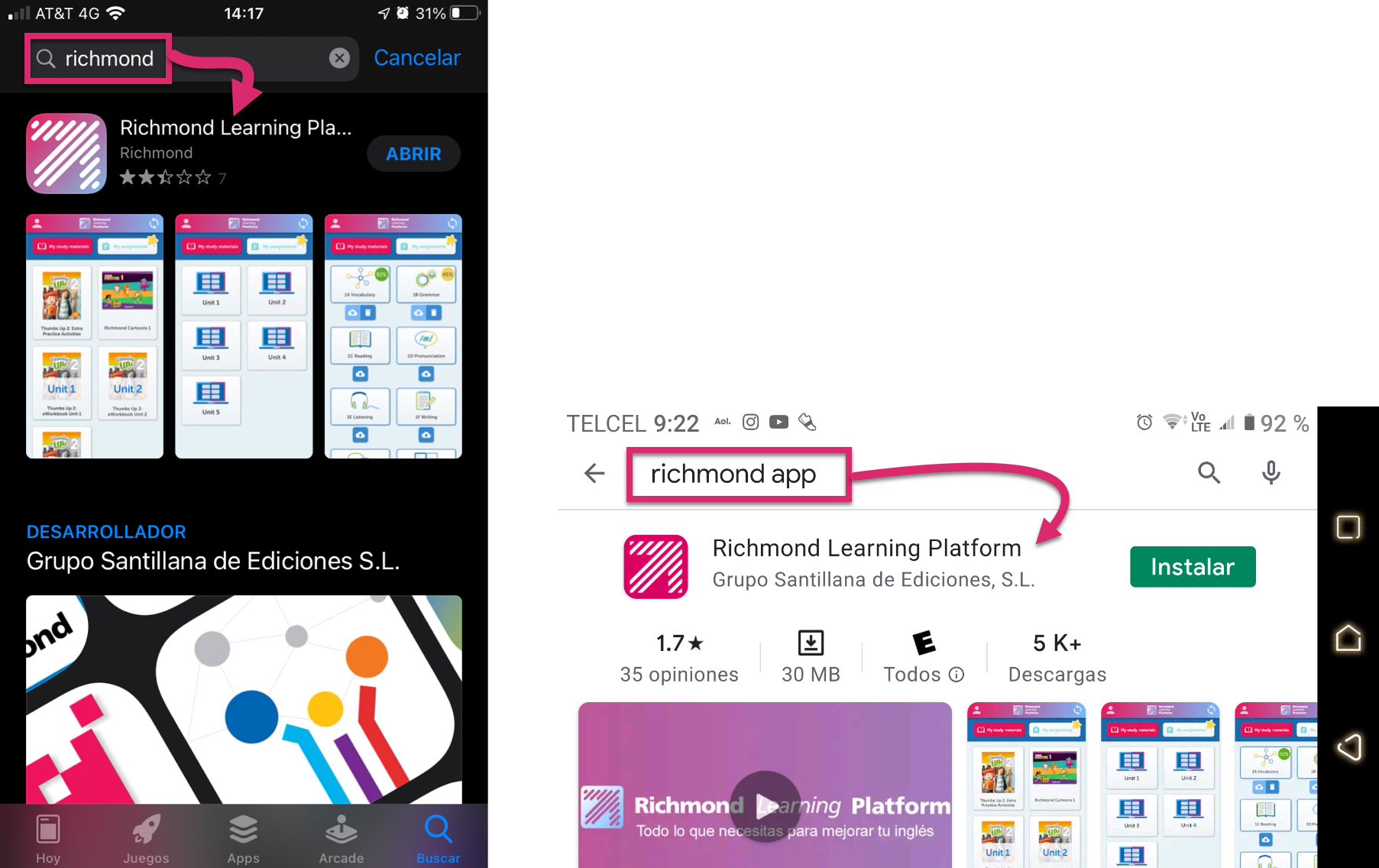
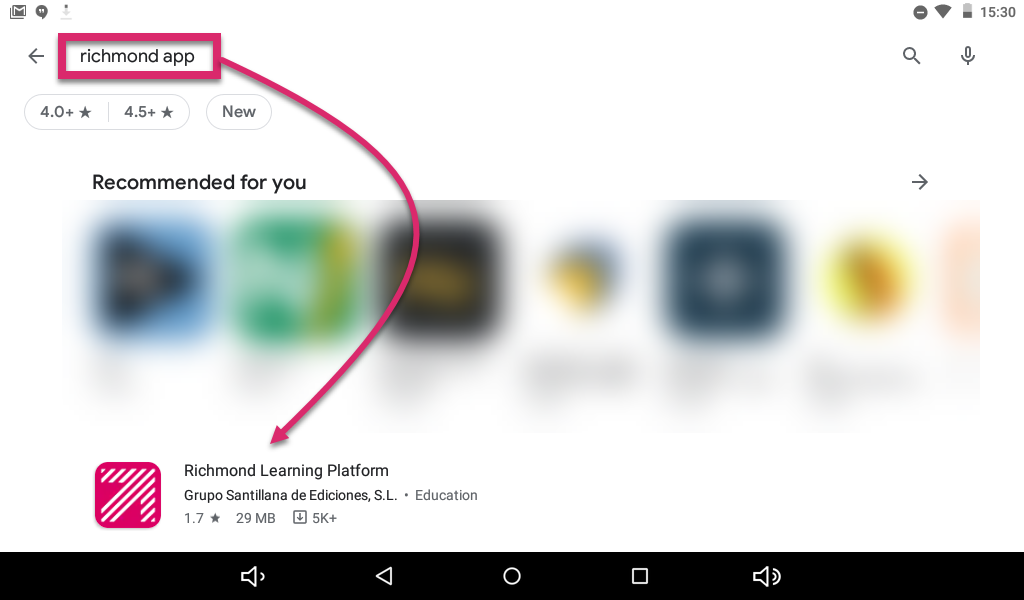
Remember that this app is valid only for users registered in institutions that use the RLP+ K12 platform. For users of the RLP K12 version, a message will appear indicating that they do not have sufficient permissions to use the application.
Click on the download button to start downloading the RLP app:
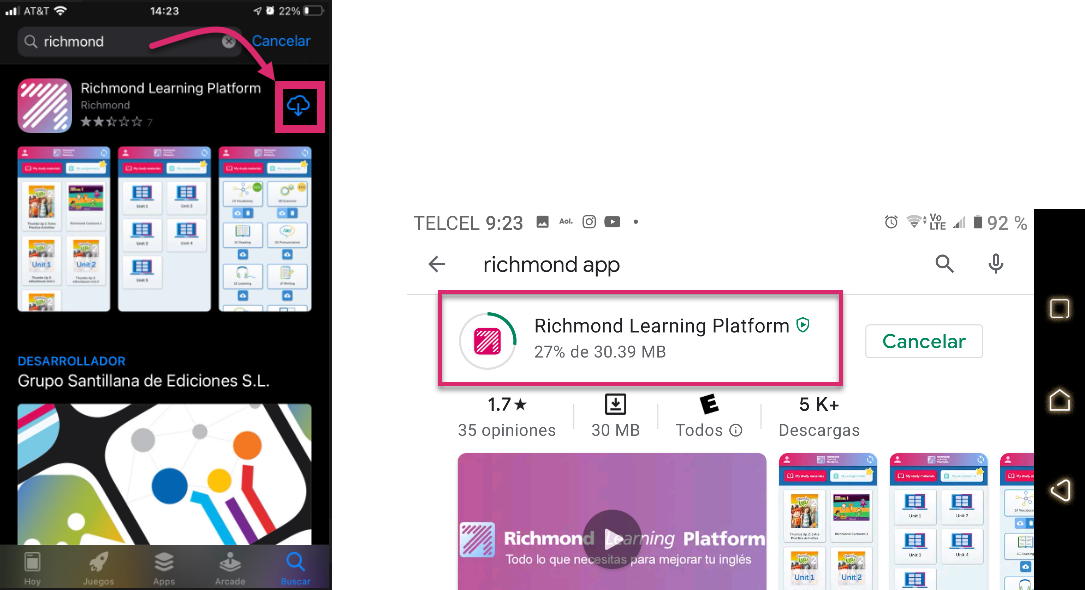
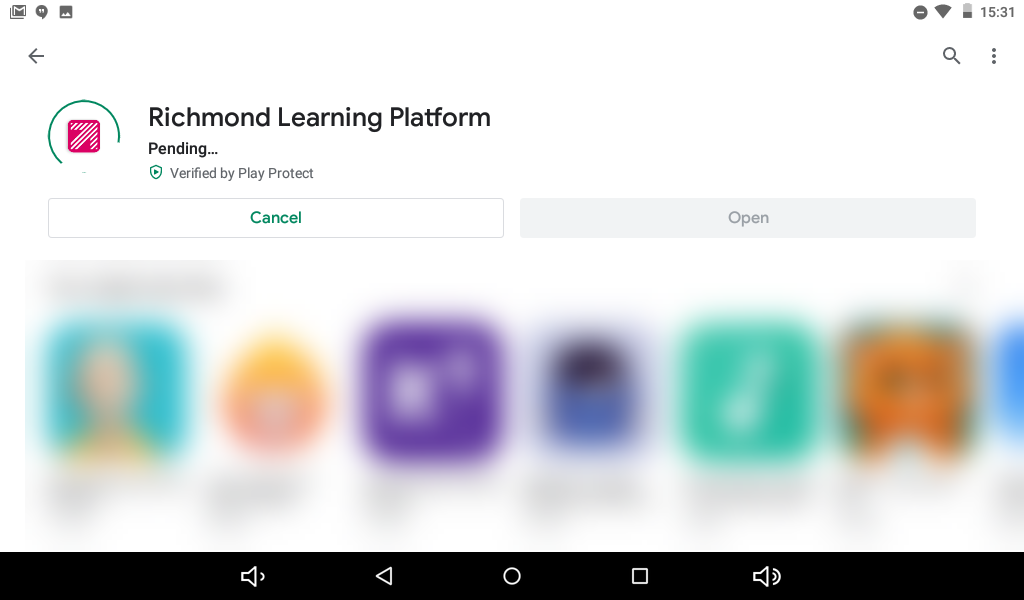
Once the app is downloaded, you can open it from your list of applications:
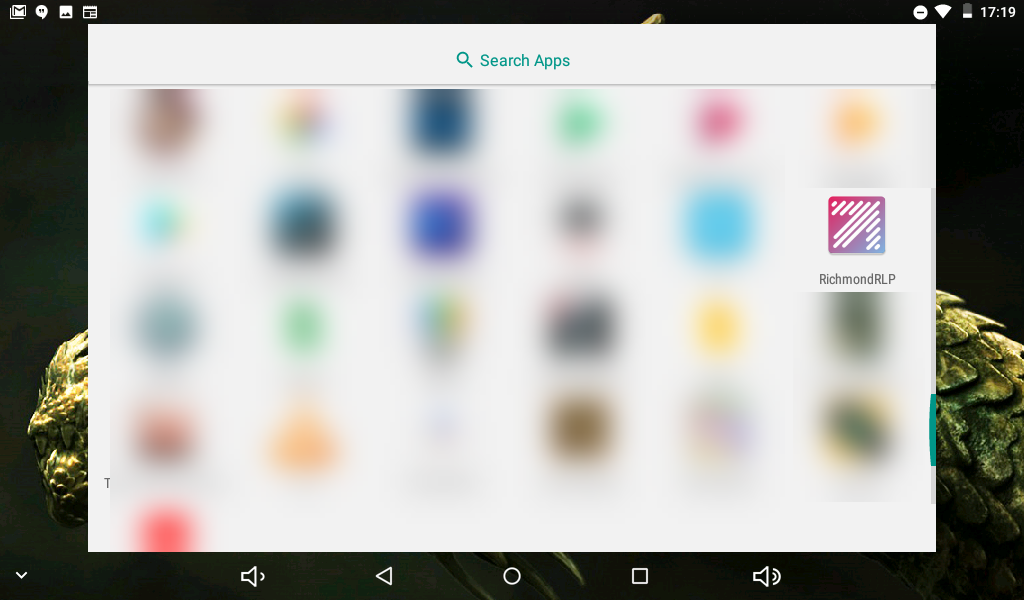
On the App, the user will have access to a part of the platform's features, as well as other extra ones:
-
You will have access to educational content through My Study materials and assignments through My assignments.
-
You can access the products offline, by downloading content.
-
Once the user is connected to the Internet, the app will be automatically synchronize with the platform and the grades of the exercises that have been completed offline will appear in the Markbook of the platform.
-
The rest of the functionalities that appear on the platform will only be available through Web Access.
Once the app is installed (Android, iOS, Windows or Mac) and when it is opened, the access screen will display like this →
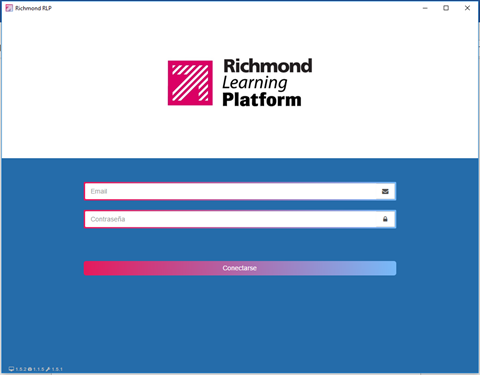
Once we enter username and password, you will see the following screen, where the student will be able to access educational content and tasks.
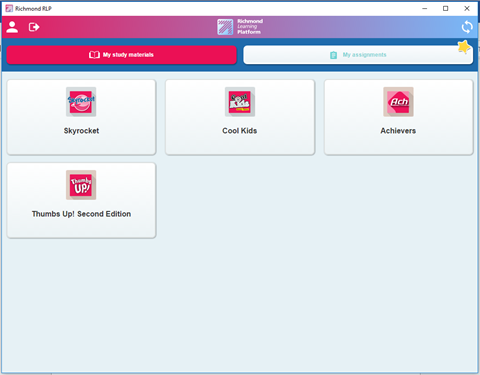
The My Study materials tab shows the contents that the student has registered. The Series to which the book belongs is shown first (Skyrocket, Cool Kids, Achievers, Thumbs Up !).
If we click on one of the series, we can access the products:
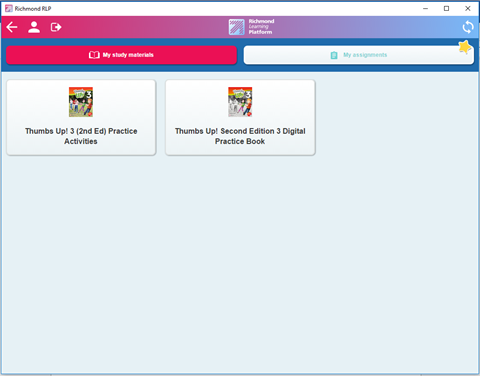
Once the product is accessed, you can navigate between units:
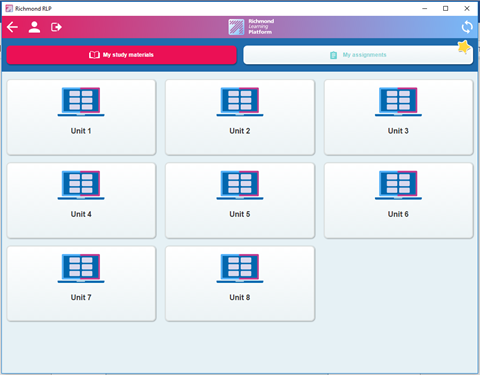
And finally the activities:
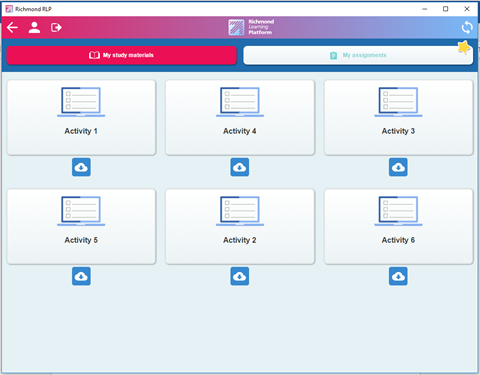
Below each activity we can find a "Download" button, which will allow us to access the activity offline. If we click on an activity, it will open and allow us to complete it:
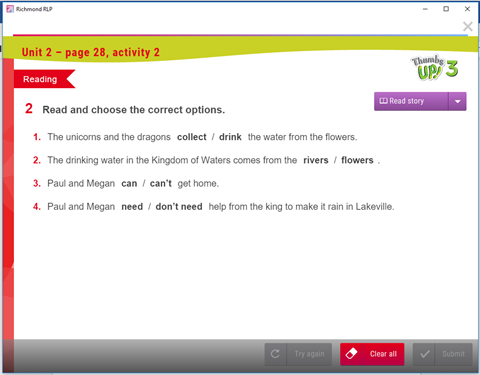
In addition to accessing educational content, we can access the assignments:
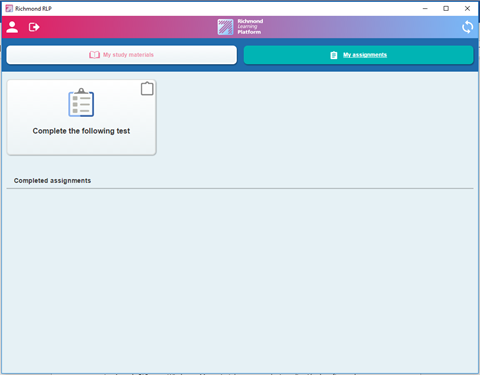
Assignments are performed similarly to product activities. Once completed, these assignments will appear in a list at the bottom of the screen. When the application is online again, when it is synchronized, the list will be empty again.