


When the student logs in to the platform for the first time, the following screen is displayed, known as Dashboard:
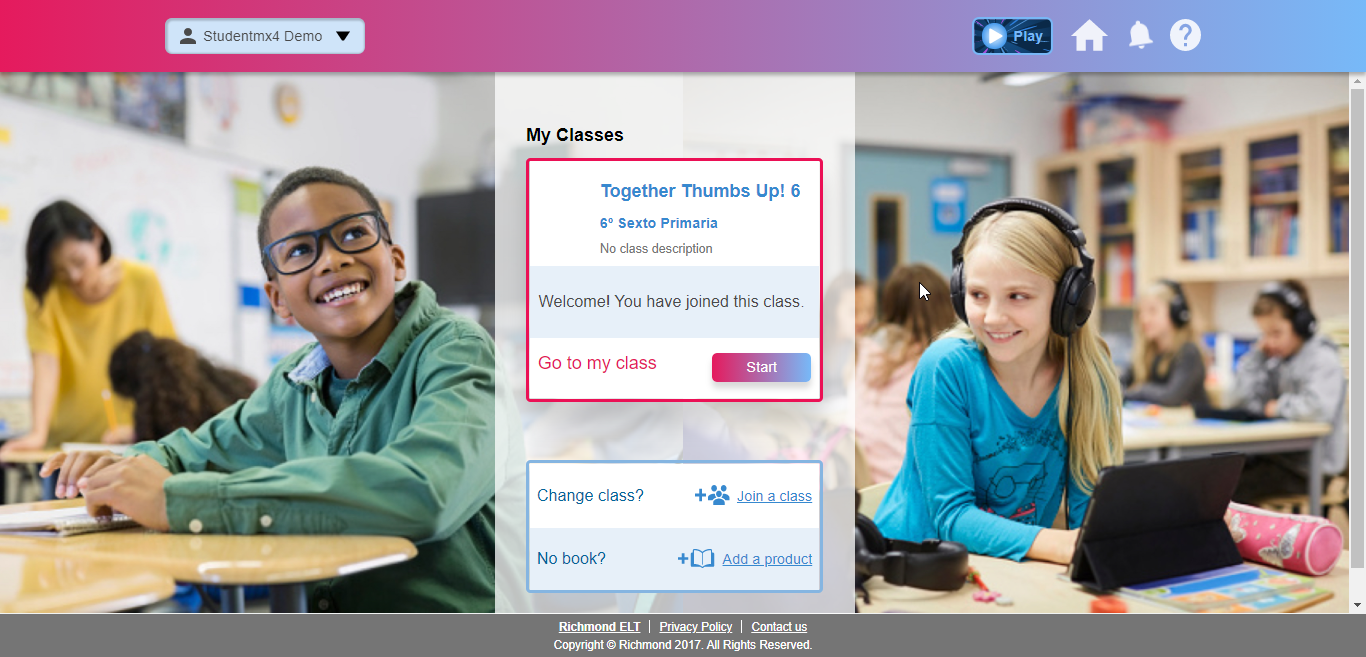
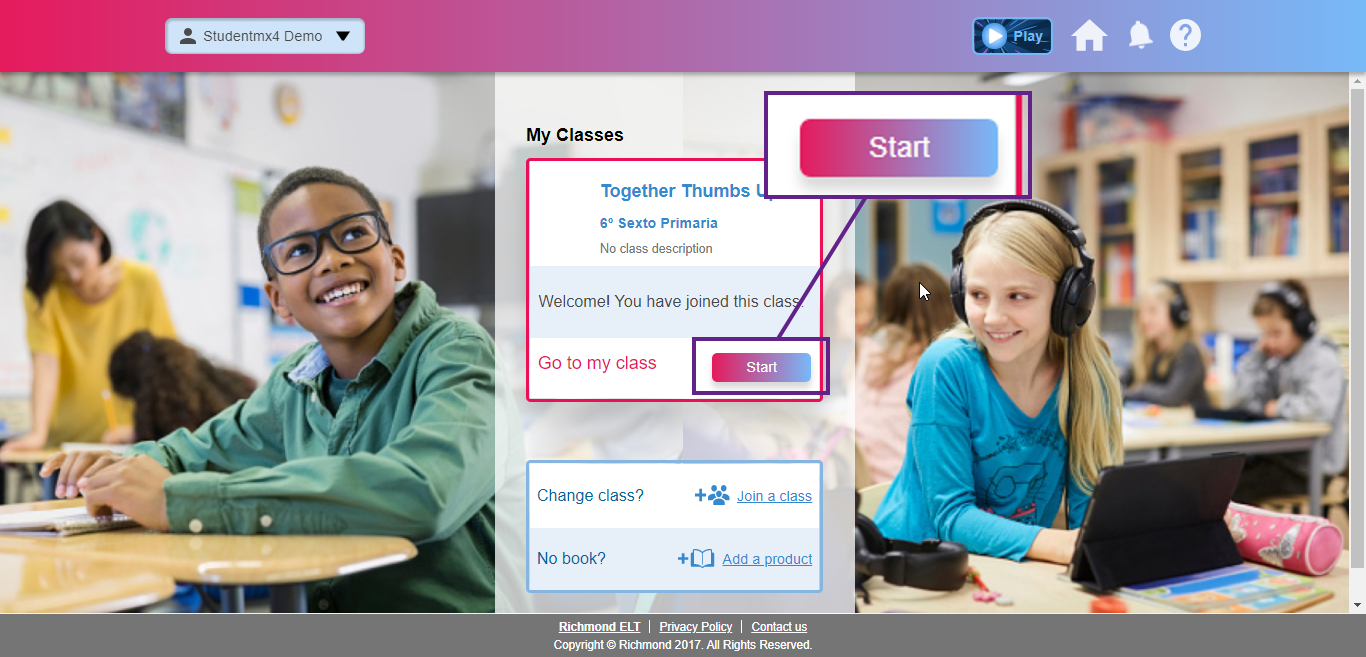
Through the Dashboard, you will have access to your class or the options to add new products and to join a new class. If you click on “Start”, you will get to the main menu of your class.
The following page will open, this will be the main page to access your content:
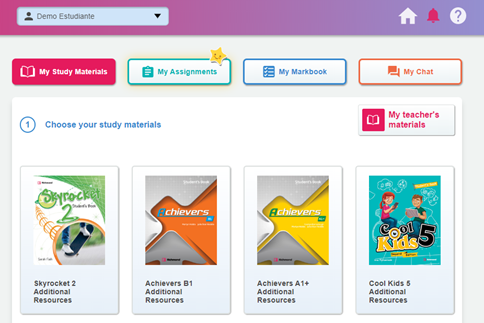
On this screen we can access four main areas:
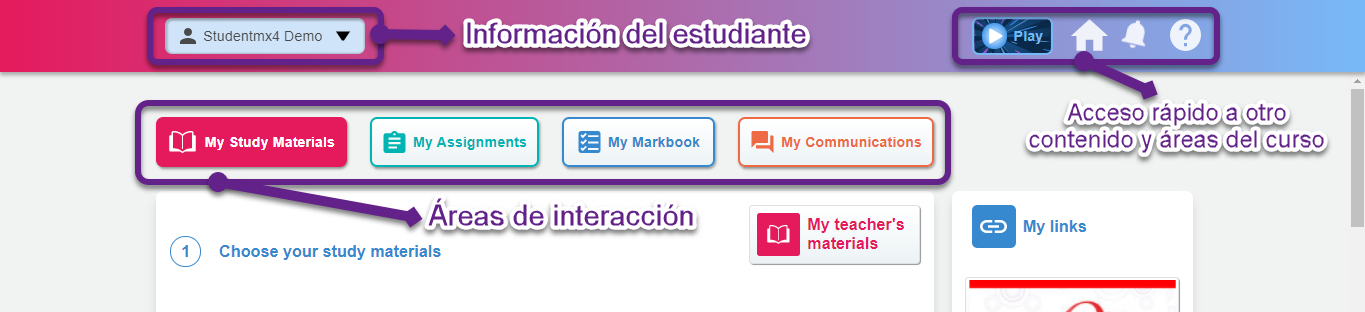
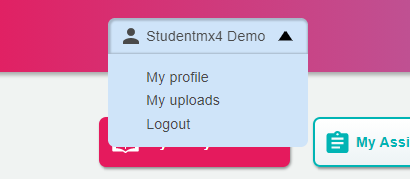
Under student information you will be able to see your profile, the files you have uploaded, and the option to close the session:
In the Quick Access section you can go to the most used tools, go to the games to review content, go to the Home screen, go to the pending message bell, and go to help:
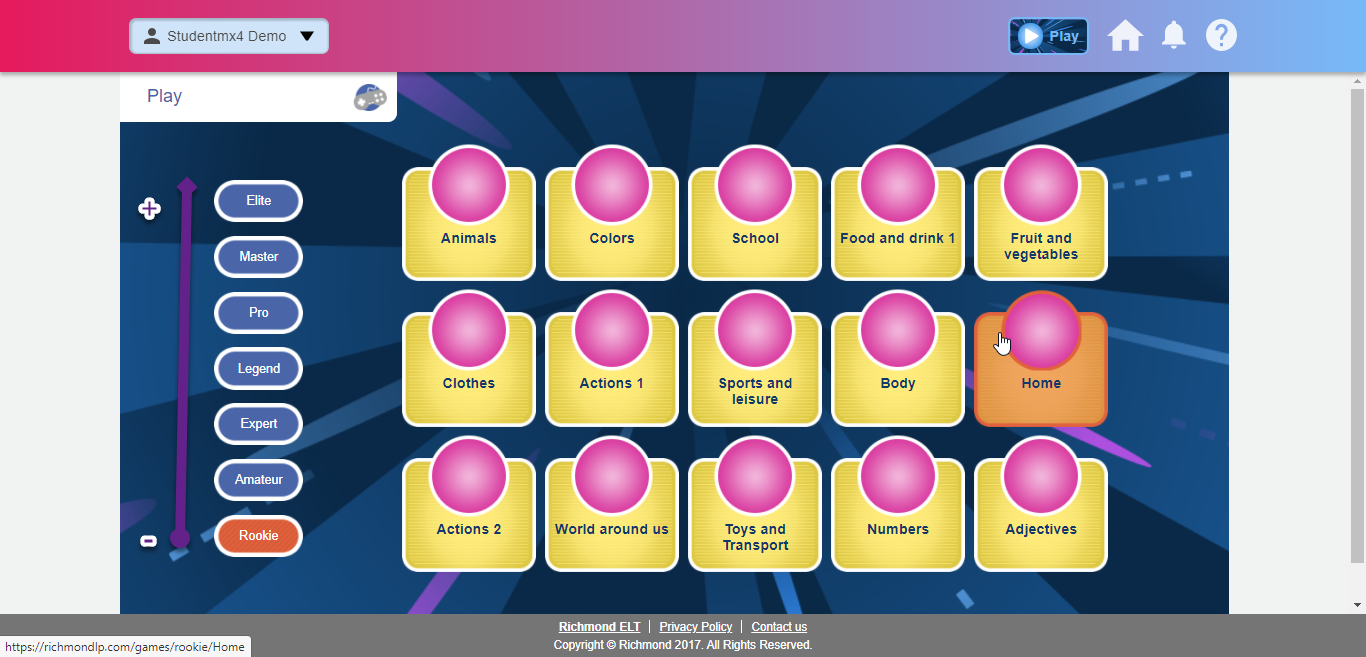
Clicking on Play will open the games window organized by theme and complexity:
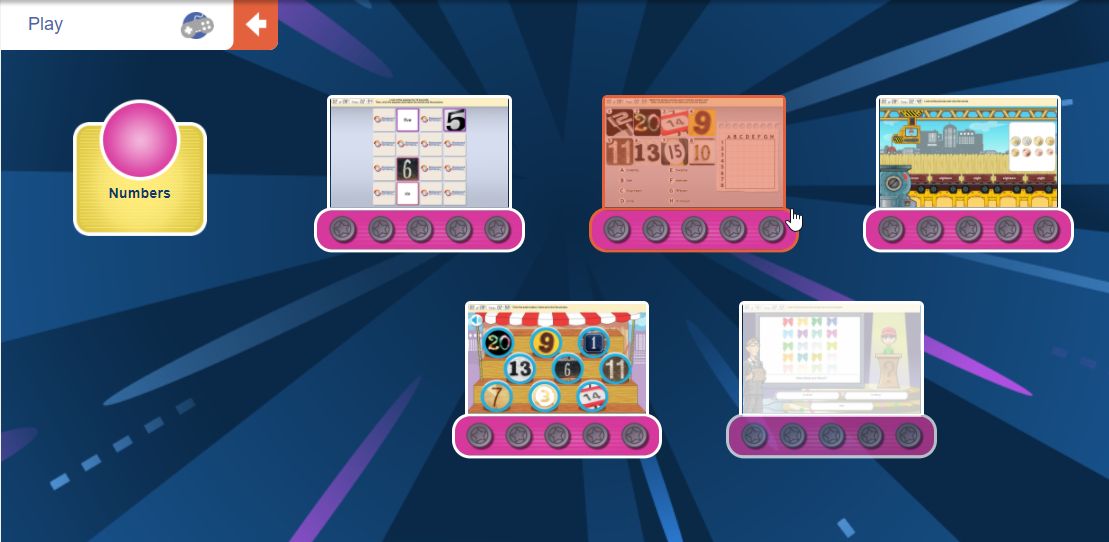
Clicking on a rating will bring up a new menu with various games to choose from:
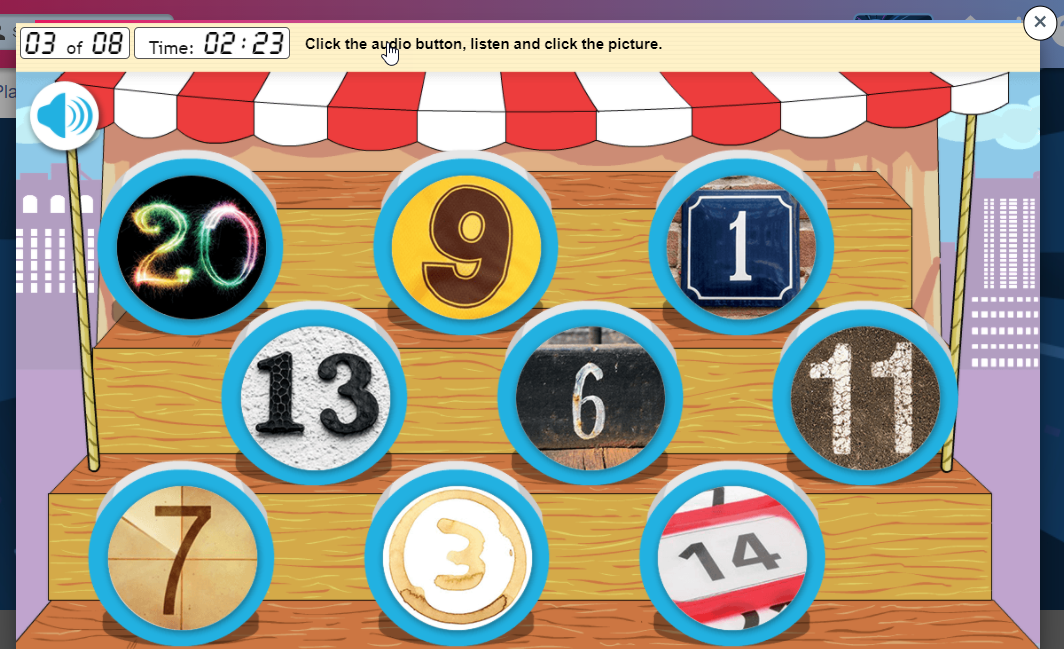
When choosing one, the game will appear with a timer and the positive and negative points obtained:
The 


Finally, in the areas of interaction there is access to 4 main sections of the course:
-
My Study Materials
-
My Assignments
-
My Markbook
-
My Chat